Creating a basic ASCII image

(Document v4.0, using Ascgen dotNET 2.0.0, updated 20110925)

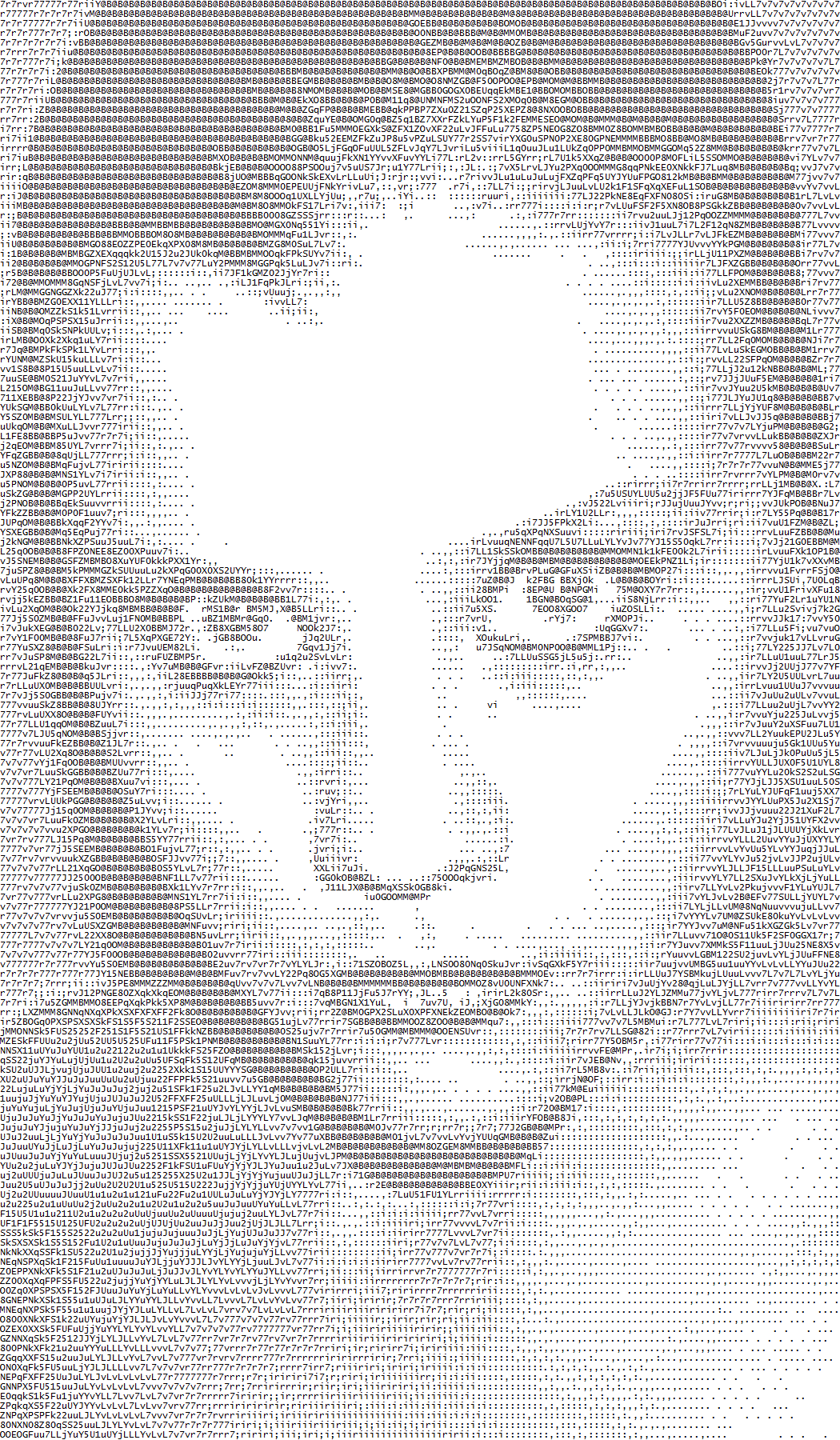
Here in the first tutorial on how to use Ascgen 2, I show you how to convert an image to a high quality fixed width text image with just a few steps and very little effort.

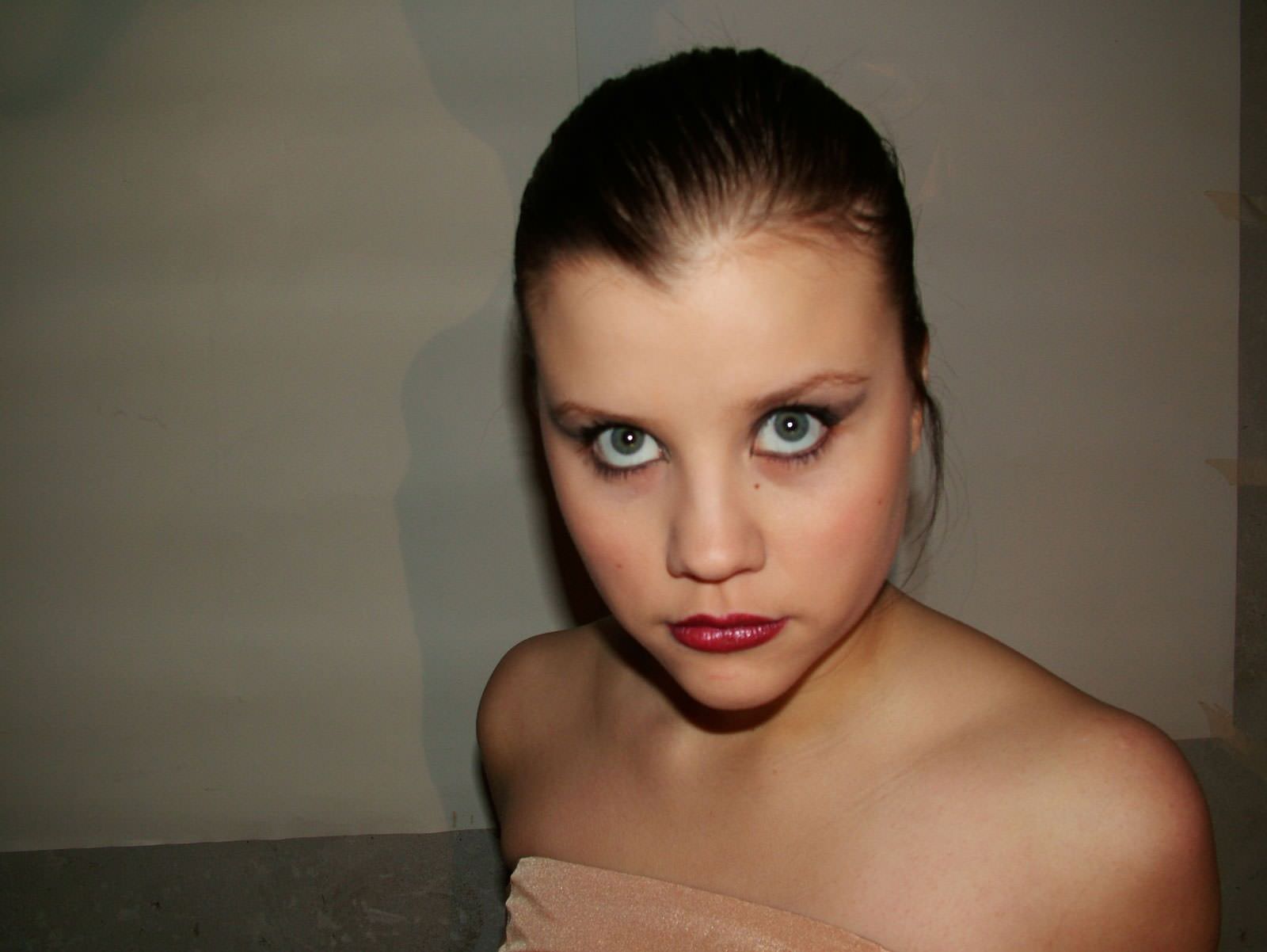
We will be going from this to .
First, a quick lesson about fonts or just skip ahead to the tutorial.

There are two main types of font: Fixed Width, which has one specific size for every character, and Variable Width, which has a fixed height but the width can vary between different characters.

Fixed width fonts such as Courier New, Lucida Console, Fixedsys are traditionally used for ASCII art, however most word processors use a variable width font like Times New Roman, or Arial.

When you have selected a fixed width font, at the top of the program you will see the “Ramp” toolbar used for setting the current ASCII ramp. When you use a variable width font this will not be present, as variable width conversions do not use ramps.

We will cover variable width font conversions in a future tutorial, but for now let’s start with the default fixed width font.

Tutorial One: Creating your first image

Get a suitable image into the program

For this tutorial I will be using the following image, which was taken from a royalty free stock photo archive.

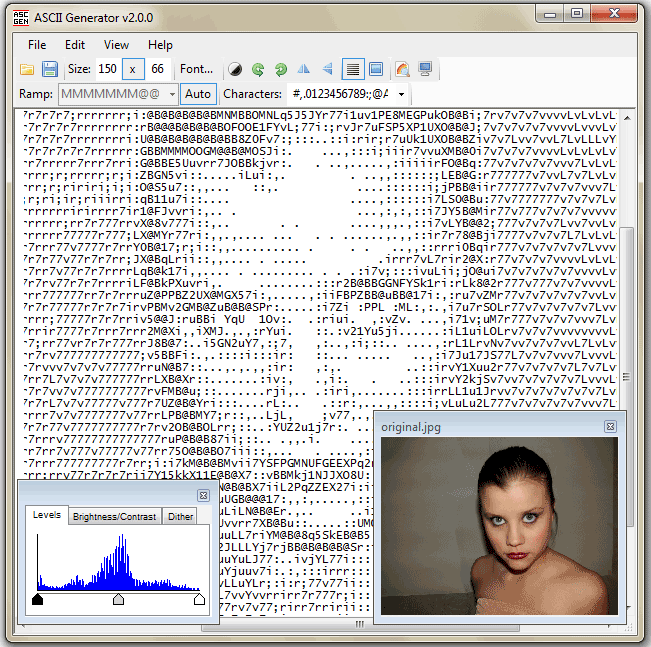
Go to “File/Load” or double-click the image area and select the image, or you can drag and drop the image onto the image tab, or just copy it and paste it with “File/Import from Clipboard”.
Select an area of the image

The resolution of the output image is far smaller than the input image, so small details will be lost or difficult to see. To produce the best output we need to zoom in and concentrate on the main subject of the image.

Click on the image and drag to create the selection area.
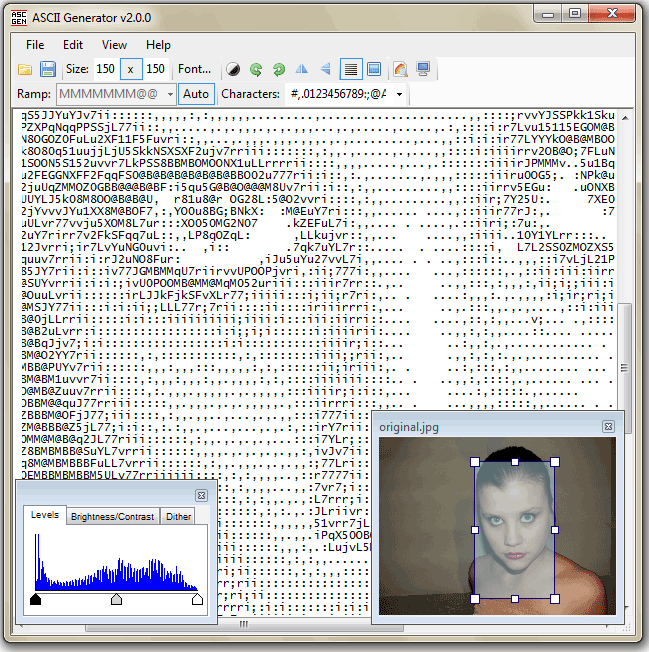
Click and drag the box to move it around, and use the white handles to adjust its size. If needed, you can make the input image bigger by resizing the widget that contains it.

Select the output font

For this tutorial, we will leave it at the default font settings which are Lucida Console, 9pt. The “Auto” button on the toolbar should be pushed down by default, which has the program create an accurate ASCII ramp for the font, and the ramp box will be grayed out.

Switch to full screen mode

To get a better view of the output, switch to full screen by clicking the fullscreen button, or pressing F11. Alternatively, you could just maximize the window.
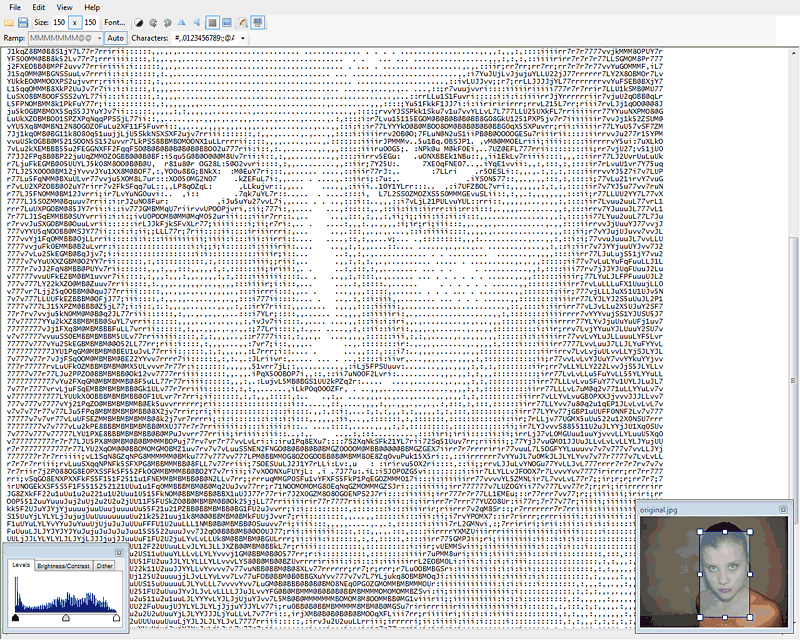
Adjust the brightness/contrast and levels for the output

To get the best results you usually need to adjust the output settings. The program allows you to do this in real-time.

The recommended method for adjusting the text is through the levels control. This shows you a histogram of the current image, and allows you to adjust the minimum, median and maximum values in exactly the same way as you would in photoshop or other photo applications.
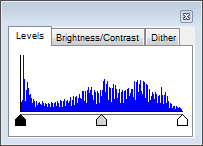
Choose the ‘Levels’ tab if it isn’t currently visible.

Click and drag the black slider to adjust the minimum level. Try and put it near the first peak. Then, click and drag the white slider to adjust the maximum level. Try and put it around the last peak. If necessary, adjust the grey slider a little to set the middle point of the range. Right-click the levels graph and select reset to return to the default values.

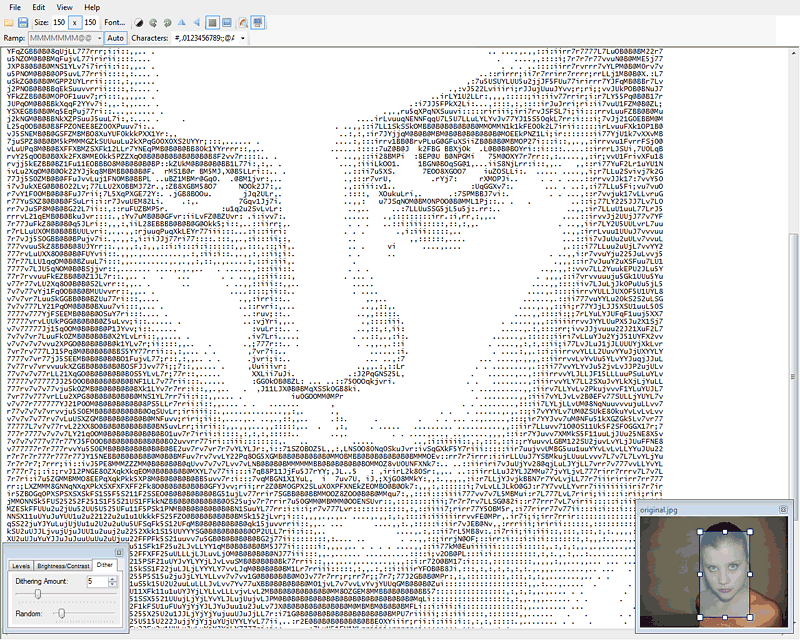
Another method is to adjust the output Brightness/Contrast, which is found by switching to its tab on the text widget and works in a similar way as the levels. The third tab, Dithering, is a method of introducing noise to help blend the characters together and improve the output.

Just play around with the settings until you are happy with the results.
Save the text image

Now that the image is finished, we just need to save it.

Go to “File/Save As…” and the save dialog will appear.
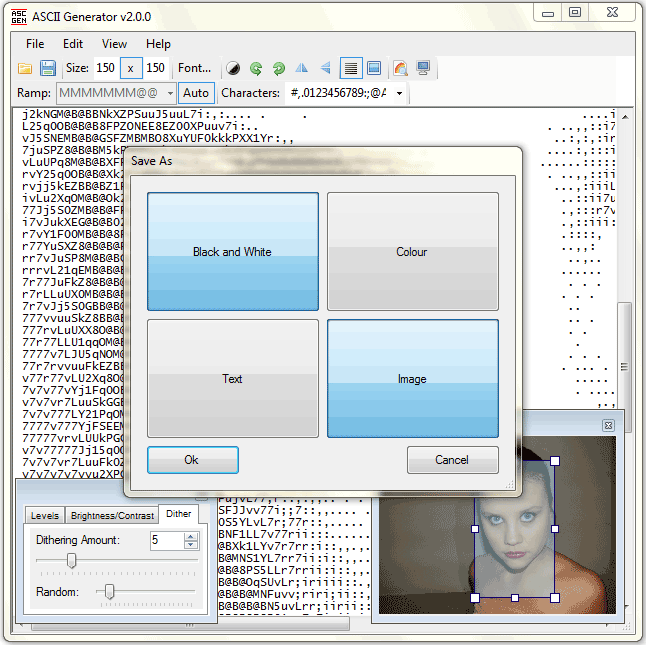
Let’s leave colour conversions for now. The default is black and white output, so make sure that is selected, and also the output type is text.

Set the “Save as type” drop down box for how you want to output the text image:

  • Plain Text – Save the text without any font information (remember to set the correct font when you display it)
  • Plain Text (Unicode) – Same as above, but will save as a unicode text file that can store ANSI and other non standard characters
  • NFO – Same as Plain Text (Unicode), but with the .nfo extension
  • Rich Text – Saves the text and font settings as a rtf file that can be opened by wordprocessors
  • XHTML 1.1 – Saves the image and font settings to a valid html file that can be opened by web browsers.

An alternative way to save the image is by clicking on Image which will output the text into an image format.
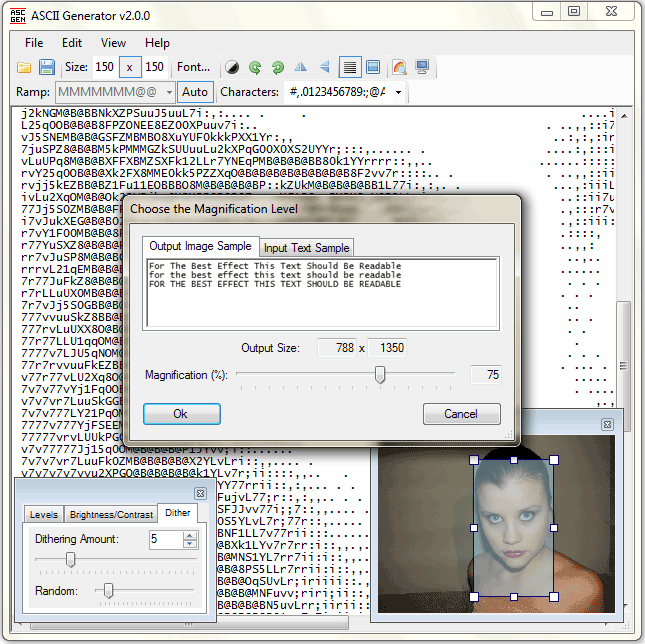
This is useful if you want to make sure the image will be displayed looking exactly as it should look without having to worry about the font.

By default the image is resized to 75% of its original size, but you can adjust it up to 100% (the actual text size) or down to 25%. Use the arrow keys to adjust the size in smaller increments to the exact dimensions you want, or drag the slider. Click “Ok”, then set the output filename and type (.gif usually produces the smallest output sizes), and we’re done.

Post comment as twitter logo facebook logo
Sort: Newest | Oldest

Hi, I'm not sure why it isn't working. It might not be getting saved as a text file. I'll email the file to you.

You can get the untranslated file here: http://ascgen2.svn.sourceforge.net/viewvc/ascgen2/trunk/Ascgen2/Translation/translation.xml

I do try to "translate" to my native language. But the even the untouched languagefile "translation.en-us.xml" get errors when trying to use "implant" it in the Ascgen2.exe folder. The error says: "Unexpected XML-declearation must be the first node in the document, and it is not allowed with space-sign before it. Line 2, place 3." (Sorry for poor english, but I hope you understand the issue.)

saya kurang mengerti,,bagaimana cara mengunakannya..???

It would be nice if we can write our own text

any way to get the ramp letters to stay in a sequence, ie, if I type in "I love fly fishing", it randomly uses those letters, i want it to have the message enclosed.

How to do this with my pic?

You need to make sure you convert for that specific font.

http://ascgendotnet.jmsoftware.co.uk/help/faq

Hi!
I have the same problem as Karsten : "i cant put the pics (text) into any guestbooks, without them being destroyed…."
They just don't look good like in AscGen. Does anybody know the solution?
Thank you!

No, I'm not sure how that would work.

Is there a way to import a text file (a written document) and use that as the source of text? So that it could be read when examining the photo rendition.

Very cool to have more control than some online ascii creators,
but what I'm wanting to do is use specific text as my fav online editor is off with the contrast.
Looking for a away : )

Not sure what you mean. Increasing the font size will make the text bigger.

if i am making a picture with only numbers. how can i make the numbers bigger? changing the fonts and font sizes doesnt change the size of numbers..

This program is really great. I can see that authors made a great deal doing this thing.
Thank you for your work!

If you want the output to be bigger, change the output width or height to a bigger number.

hey please someone tell me how to resize the text it to big although the image was small...tell me please
&how to choose the magnification level??i cant figure it out...i click on the image but nothing...tell me brieftly please

sry for the bad eng

That program is awsome:)
but i do have a problem, i cant put the pics (text) into any guestbooks, without them being destroyed.... is there any solution i dont see????

There isn't a reset. Unless you mean the one on the levels or brightness/contrast controls, which resets that control.

I would like to see a undo/redo feature and also a reset that will reset all the settings to default. So far, if i hit a reset, it doesn't reset anything. Otherwise is a terrific little program. I really like it. Thanks for making and sharing it!

Thanks.

There's far too much processing and information loss taking place to ever do that. It basically shrinks the image down and converts it to greyscale, so there's no way you could go back.

Fantastic Program, Very well designed. But is there a way to reverse the process?? i mean, can the text file be recoverted to the original image. If so, this software can be used as a security purpose.

Great program!! However, I agree with Colin above. You need to support the old fonts, like Terminal, System, etc. so we can output the art for NFO files. The block ASCII comes out as character ASCII when you copy/paste it into most NFO makers, which usually only support the older font styles. Please add support for these older fonts (non-TrueType and non-OpenType). Thanks!

It works great and is excellent for making ascii art and gives the greatest control of the output that I have seen. But for making nfo's it doesn't work well as the Terminal font is not selectable so the text/font is incompatible and does not display correctly. If that worked then it would be extremely good.

Great!!

It help me to learn more about programming in C#.

Thanks!

That Gaia thing is a very cool looking system. I'll definitely check it out when I get a chance.

--
#Frodohack#: That's on my todo list, but there are some technical issues that I need to work on.

--

p.s. Updated the tutorial for the current version.

Howdy, why don't you port it to WEB by using Gaia, take a look at what I did spending an hour of porting an existing ASCII art generator at codeproject; http://ajaxwidgets.com/Ascii-Art/AsciiArt.aspx

.t

i'm not english, i'm italian but this software is very beautiful, it's incredible and i like tish website, but i can't make a text over the image... it's possible???
Thanks

This is simply an astonishing program. Don't know how much time (a lot I presume) was put into it but it was time well spent!
Well done Jonathan!

far the best ascii image program ever seen

Wow, this is the best so far, nice work, keep going

I have used other programs and was never really pleased with the output. This program is incredible! Keep up the great job guys!

Greg

Just change the width or height in the toolbar where it says "Size".

I should probably add something about that in the tutorial.

how can i make the text or the images SMALLER for using them in other apliccattions?
thanks!

Saving colour image files is ready for the next release.

I'm not sure how that filter would work (assuming I understand what you mean). Randomly make vertical gaps and output in green on black background? Actually, that would be pretty cool...

This is great!!! You should develop a matrix filter! And a colour image exporter such as saving as .jpg/.tif

Excelente programa para tranformar fotos em texto.
Parabens!

How can I post a comment on the hi5 with a ascii photo

"File/Save as Colour Text"

It's Great!
But...
Where are the colors?

16 or 256 color characters on black backround for console arts and white (or colored) background for posters...

The download link at the top of the page:
http://sourceforge.net/project/showfiles.php?group_id=133786

Hi Where can i get this cool program from???

Simply superb!!!
awsome...
I got this through Digit CD (http://thinkdigit.com)...
Mindblowing work...

Eu gostaria muito de saber como faço para transformar uma foto que tenho no meu PC para ascii

she's pretty cute

AWESOME! I have been looking for something like this for ages.
well done, keep it up

Whow is the BEST ASCII-Programm ice ever seen. real impresive work!

Man.. i must say this software is awesome.... i juts downloaded it and it' blew my mind.. Keep at it. man...